[Oracle Cloud] OCI Free Tier 소개
홈랩의 확장을 위해 여러 CSP를 찾아 보던 중 오라클 클라우드의 혜자(?) Free Tier 정책이 있어 소개하고자 합니다. CSP 메이저 3사는 아니지만, 랩 환경에서는 충분한 기능과 사용량을 보장하기 때
tech-recipe.tistory.com
이전 포스팅에서, 오라클 클라우드의 Free Tier에서 제공하는 기능에 대해서 알아보았습니다. 이번 포스팅은 오라클 클라우드를 제어하는데 필요한 CLI 도구를 설치하고, 사용하는 방법에 대해서 알아보겠습니다.
1. OCI CLI 설치하기
Quickstart
This section documents how to quickly install and configure the OCI Command Line Interface (CLI).
docs.oracle.com
이번 포스팅에는 MacOS를 기반으로한 OCI CLI 설치 방법을 설명드립니다. 다른 운영체제에서 OCI CLI를 설치하는 방법은 위 링크를 통해 확인할 수 있습니다.
Brew Install
MacOS에서는 Homebrew를 사용합니다. 따라서 Homebrew가 먼저 설치되어 있어야 합니다.
CLI Install
brew update && brew install oci-cliCLI Upgrade
brew update && brew upgrade oci-cliCLI Uninstall
brew uninstall oci-cli
설치가 완료되면 아래 명령어를 통해 설치를 확인할 수 있습니다.
oci -v

# 2025년 10월 18일 기준
3.68.0
2. Configuration file 설정하기
명령어를 사용한 Setup
oci setup config 명령어를 사용하면 대화 형식을 통해 Configuration file을 설정할 수 있습니다.
oci setup config

# 아래 내용이 출력됨
    This command provides a walkthrough of creating a valid CLI config file.

    The following links explain where to find the information required by this
    script:

    User API Signing Key, OCID and Tenancy OCID:

        https://docs.cloud.oracle.com/Content/API/Concepts/apisigningkey.htm#Other

    Region:

        https://docs.cloud.oracle.com/Content/General/Concepts/regions.htm

    General config documentation:

        https://docs.cloud.oracle.com/Content/API/Concepts/sdkconfig.htm


Enter a location for your config [/Users/<사용자 이름>/.oci/config]: # Enter를 입력하면 기본 경로에 config 파일이 생성됨
Enter a user OCID: # <사용자 OCID> 입력
Enter a tenancy OCID: # <Tenacy OCID> 입력
Enter a region by index or name(e.g.
1: af-johannesburg-1, 2: ap-batam-1, 3: ap-chiyoda-1, 4: ap-chuncheon-1, 5: ap-chuncheon-2,
6: ap-dcc-canberra-1, 7: ap-dcc-gazipur-1, 8: ap-delhi-1, 9: ap-hyderabad-1, 10: ap-ibaraki-1,
11: ap-melbourne-1, 12: ap-mumbai-1, 13: ap-osaka-1, 14: ap-seoul-1, 15: ap-seoul-2,
16: ap-singapore-1, 17: ap-singapore-2, 18: ap-suwon-1, 19: ap-sydney-1, 20: ap-tokyo-1,
21: ca-montreal-1, 22: ca-toronto-1, 23: eu-amsterdam-1, 24: eu-budapest-1, 25: eu-crissier-1,
26: eu-dcc-dublin-1, 27: eu-dcc-dublin-2, 28: eu-dcc-milan-1, 29: eu-dcc-milan-2, 30: eu-dcc-rating-1,
31: eu-dcc-rating-2, 32: eu-dcc-zurich-1, 33: eu-frankfurt-1, 34: eu-frankfurt-2, 35: eu-jovanovac-1,
36: eu-madrid-1, 37: eu-madrid-2, 38: eu-marseille-1, 39: eu-milan-1, 40: eu-paris-1,
41: eu-stockholm-1, 42: eu-zurich-1, 43: il-jerusalem-1, 44: me-abudhabi-1, 45: me-abudhabi-2,
46: me-abudhabi-3, 47: me-abudhabi-4, 48: me-alain-1, 49: me-dcc-doha-1, 50: me-dcc-muscat-1,
51: me-dubai-1, 52: me-ibri-1, 53: me-jeddah-1, 54: me-riyadh-1, 55: mx-monterrey-1,
56: mx-queretaro-1, 57: sa-bogota-1, 58: sa-santiago-1, 59: sa-saopaulo-1, 60: sa-valparaiso-1,
61: sa-vinhedo-1, 62: uk-cardiff-1, 63: uk-gov-cardiff-1, 64: uk-gov-london-1, 65: uk-london-1,
66: us-ashburn-1, 67: us-ashburn-2, 68: us-chicago-1, 69: us-gov-ashburn-1, 70: us-gov-chicago-1,
71: us-gov-phoenix-1, 72: us-langley-1, 73: us-luke-1, 74: us-newark-1, 75: us-phoenix-1,
76: us-saltlake-2, 77: us-sanjose-1, 78: us-somerset-1, 79: us-thames-1): # <사용자 Home region 번호> 입력
Do you want to generate a new API Signing RSA key pair? (If you decline you will be asked to supply the path to an existing key.) [Y/n]: y # 'y' 입력하여 새로운 api 키 생성
Enter a directory for your keys to be created [/Users/<사용자 이름>/.oci]: # Enter를 입력하면 key가 저장될 위치로 기본 위치가 지정됨
Enter a name for your key [oci_api_key]: # OCI Key 이름 지정, Enter를 입력하면 'oci_api_key'라는 기본 이름으로 지정
Public key written to: /Users/<사용자 이름>/.oci/oci_api_key_public.pem
Enter a passphrase for your private key ("N/A" for no passphrase): # Private Key의 passphrase를 입력, 'N/A'를 입력하면 passphrase 없이 진행
Repeat for confirmation: # 위에 입력했던 passphrase를 다시 입력, 'N/A'를 입력했어도 동일하게 입력
Private key written to: /Users/<사용자 이름>/.oci/oci_api_key.pem
Fingerprint: 74:5b:fa:ec:21:22:65:d6:31:c1:7a:08:12:41:0b:67
Config written to /Users/<사용자 이름>/.oci/config


    If you haven't already uploaded your API Signing public key through the
    console, follow the instructions on the page linked below in the section
    'How to upload the public key':

        https://docs.cloud.oracle.com/Content/API/Concepts/apisigningkey.htm#How2
위 대화 형식의 configuration setup을 진행에 userOCID, teancy OCID, region index 정보를 입력해야 합니다. 각 정보를 확인하는 방법은 아래와 같습니다.
userOCID
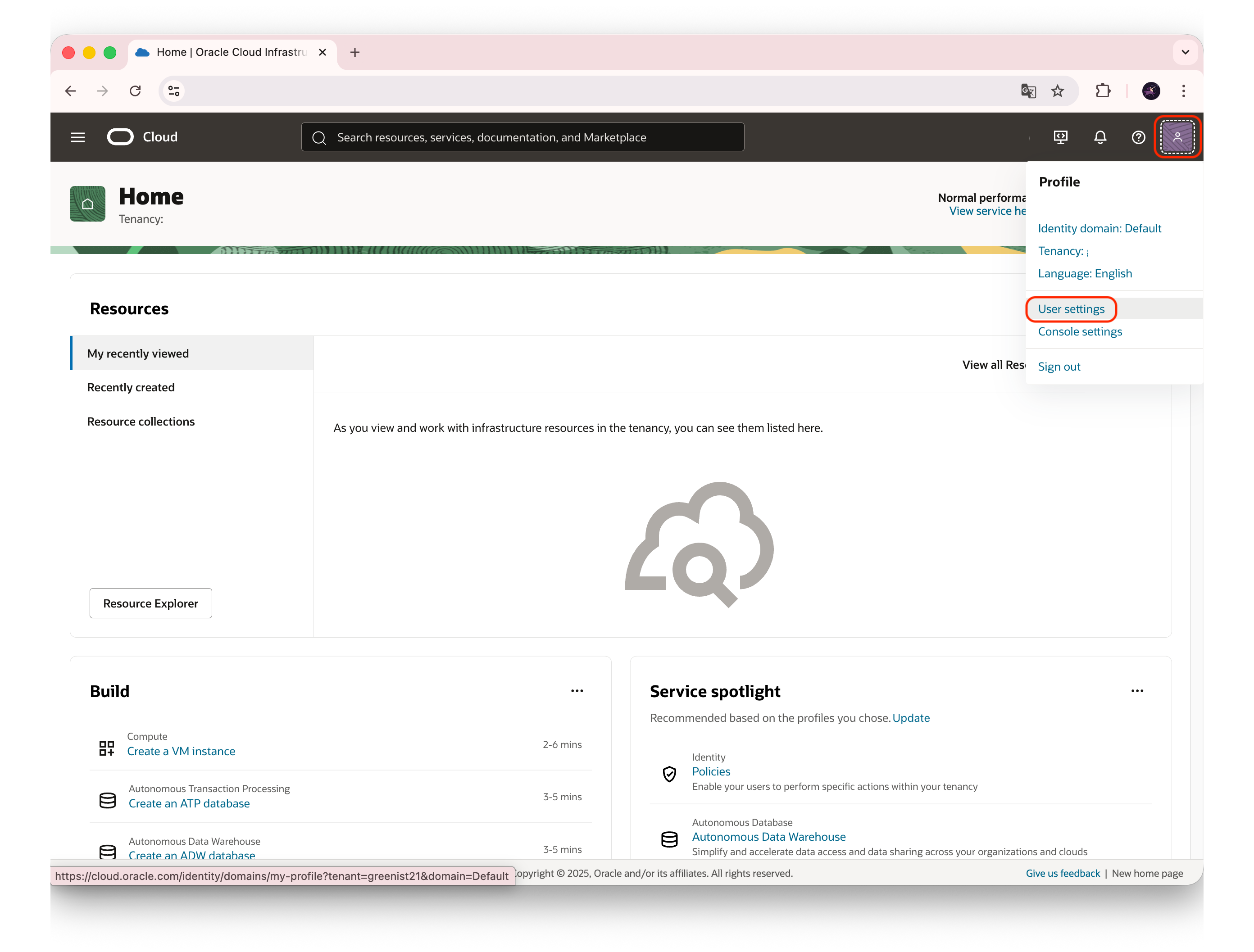
userID는 화면 우측 상단의 사람모양 아이콘을 클릭하고, 드롭다운 메뉴의 User settings를 클릭합니다.
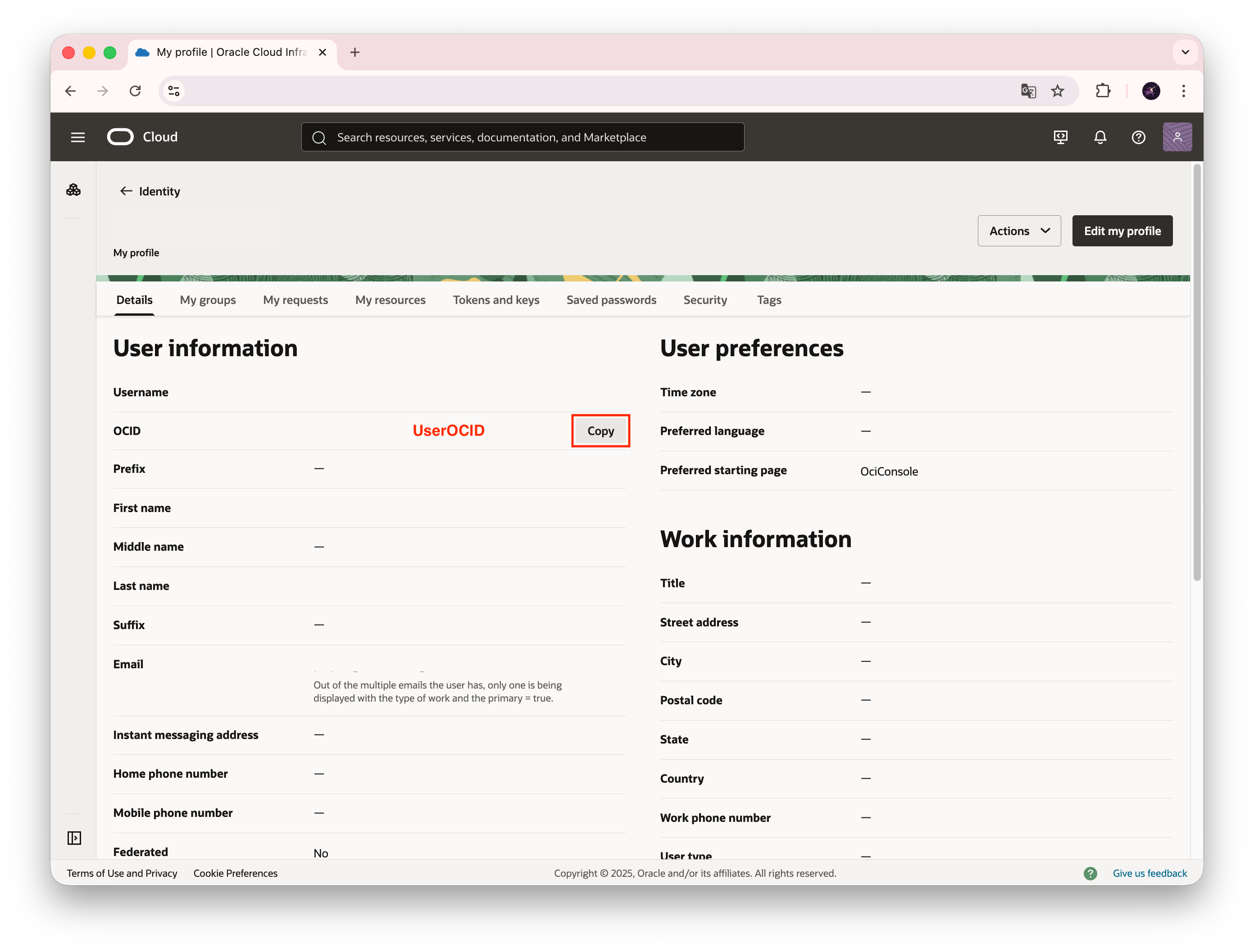
화면에 userOCID값이 출력됩니다. 가급적이면 이 값은 유출되지 않도록 하는게 좋습니다.
tenacyOCID / Home region / Home region key

TenacyOCID 정보 역시 화면 우측 상단의 사람 모양 아이콘을 클릭하고 나타나는 드롭다운 메뉴에서 Teancy를 클릭하여 확인할 수 있습니다. 이 화면에서는 또한 Home region과 그에 대한 Key 값도 확인할 수 있습니다. Home region key 값을 통해 Region Identifier를 확인할 수 있기 때문에, 대화형 configration file setup에서 region index가 불확실한 경우 꼭 참고하여야 합니다.
Regions and Availability Domains
Open the Help menu , go to Support and click Request service limit increase. Enter the following: Primary Contact Details: Enter the name and email address of the person making the request. Enter one email address only. A confirmation will be sent to this
docs.oracle.com
위 링크는 Region Key와 Region Identifier를 함께 확인할 수 있는 문서로 참고하여 region index를 확인하면 됩니다.
3. API Public key 업로드
Configration file이 생성되면 기본적으로 홈(~/) 경로에 .oci/ 디렉토리 아래에 oci_api_key_public.pem이라는 파일이 생성됩니다. 해당 파일의 내용을 읽고 이를 OCI 콘솔에 업로드 합니다.
cat ~/.oci/oci_api_key_public.pem

# 아래 공개키 전체 내용을 복사
-----BEGIN PUBLIC KEY-----
MIIBIjANBgkqhkiG9w0BAQEFAAOCAQ8AMIIBCgKCAQEA78+/qFddYMqYyA3Lvd9A
<중략>
AZmsXXl3seTPo189zcy3IwEC2PYeW/WLhc1QdINL6P7wWETLzNI0aDpNbNTL+HHH
3wIDAQAB
-----END PUBLIC KEY-----
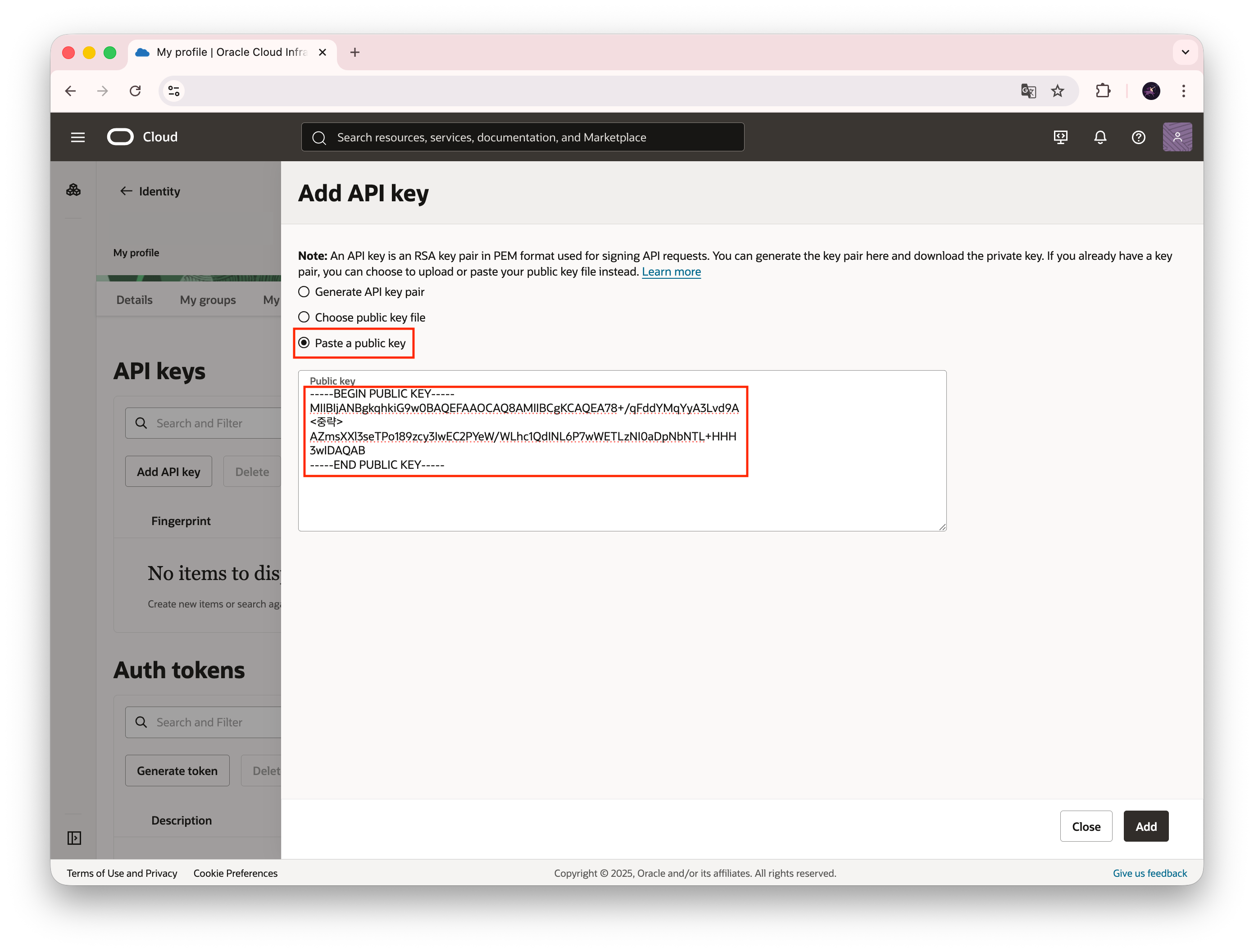
4. OCI CLI 설정 확인
아래와 같은 명령어를 통해 OCI CLI가 제대로 작동하는지 확인할 수 있다.
# 사용자 리스트업
oci iam user list

{
  "data": [
    {
      "capabilities": {
        "can-use-api-keys": true,
        "can-use-auth-tokens": true,
        "can-use-console-password": true,
        "can-use-customer-secret-keys": true,
        "can-use-db-credentials": true,
        "can-use-o-auth2-client-credentials": true,
        "can-use-smtp-credentials": true
      },
      "compartment-id": "<compartment OCID>",
# ... 생략

# 사용자 정보 확인
oci iam user get --user-id <사용자 OCID>
{
  "data": {
    "capabilities": {
      "can-use-api-keys": true,
      "can-use-auth-tokens": true,
      "can-use-console-password": true,
      "can-use-customer-secret-keys": true,
      "can-use-db-credentials": true,
      "can-use-o-auth2-client-credentials": true,
      "can-use-smtp-credentials": true
    },
# ... 생략
}
위 설정을 통해 Oracle Cloud의 CLI 툴을 로컬에 설치하고, API 공개키 등록을 통해 클라우드 인프라에 명령어를 통해 제어할 수 있는 환경을 구성해 보았습니다.
본격적인 홈랩 구성을 위한 준비단계가 잘 진행되고 있는것 같습니다.
'System > Infrastructure' 카테고리의 다른 글
| [VPN] OCI와 OPNsense로 하이브리드 클라우드 네트워크 연동하기 (BGP Site-to-Site VPN 설정 가이드) (1) | 2025.11.08 |
|---|---|
| [Oracle Cloud] OCI Free Tier 소개 (0) | 2025.10.18 |
| PXE 부팅으로 Ubuntu 22.04 설치하기 [2편] (0) | 2025.04.12 |
| PXE 부팅으로 Ubuntu 22.04 설치하기 [1편] (0) | 2025.04.09 |
| Home Lab 구축 기록 - 필요성과 설계 [2편] (0) | 2025.04.08 |