환경

  • 화이트박스에 설치된 OPNsense Version 25.7.4
  • Nginx Plugin Version 1.35

증상

  • OPNsense 재부팅 후 외부로 노출된 서비스 접근 불가
  • Nginx Plugin에 아래와 같은 에러가 발생 중

2025-10-07T19:18:54Emergencynginxnginx: configuration file /usr/local/etc/nginx/nginx.conf test failed
2025-10-07T19:18:54Emergencynginxnginx: [emerg] BIO_new_file("/usr/local/opnsense/data/OPNsense/Nginx/dh-parameters.4096.rfc7919") failed (SSL: error:80000002:system library::No such file or directory:calling fopen(/usr/local/opnsense/data/OPNsense/Nginx/dh-parameters.4096.rfc7919, r) error:10000080:BIO routines::no such file)

원인

  • 실제 해당 위치(/usr/local/opnsense/data/OPNsense/Nginx/)에 파일(dh-parameters.4096.rfc7919)이 존재하지 않음
  • 재부팅 시 파일이 어떤 이유에서인지 삭제된 것으로 추정
    • 화이트박스의 전원 버튼을 눌러 하드웨어적인 Shutdonw을 진행한 것이 원인으로 추정됨
    • 재부팅 시 다소 불안정한 상태이 로그를 확인할 수 있음
2025-10-06T17:18:45Noticekernel<118>[114] nginx not running? (check /var/run/nginx.pid).
2025-10-06T17:17:24Noticekernel<118>[33] /usr/local/etc/rc.d/nginx: WARNING: failed to start nginx
2025-10-06T17:17:24Noticekernel<118>[33] nginx: [emerg] BIO_new_file("/usr/local/opnsense/data/OPNsense/Nginx/dh-parameters.4096.rfc7919") failed (SSL: error:80000002:system library::No such file or directory:calling fopen(/usr/local/opnsense/data/OPNsense/Nginx/dh-parameters.4096.rfc7919, r) error:10000080:BIO routines::no such file)
2025-10-06T17:17:24Noticekernel<118>[33] Starting nginx.
2025-10-06T17:17:24Noticekernel<118>[33] nginx: configuration file /usr/local/etc/nginx/nginx.conf test failed
2025-10-06T17:17:24Noticekernel<118>[33] nginx: [emerg] BIO_new_file("/usr/local/opnsense/data/OPNsense/Nginx/dh-parameters.4096.rfc7919") failed (SSL: error:80000002:system library::No such file or directory:calling fopen(/usr/local/opnsense/data/OPNsense/Nginx/dh-parameters.4096.rfc7919, r) error:10000080:BIO routines::no such file)
2025-10-06T17:17:24Noticekernel<118>[33] Performing sanity check on nginx configuration:
2025-10-06T17:17:24Noticekernel<118>[33] /usr/local/etc/rc.d/nginx: WARNING: failed to setup nginx
2025-10-06T17:17:24Noticeroot/usr/local/etc/rc.d/nginx: WARNING: failed to start nginx
2025-10-06T17:17:24Noticeroot/usr/local/etc/rc.d/nginx: WARNING: failed to setup nginx

조치

  • dh-parameters.4096.rfc7919 파일 생성
  • OPNsense SSH 접속 후 아래 명령어 실행 - 파일 생성에 약 10분정도 소요
openssl dhparam -out /usr/local/opnsense/data/OPNsense/Nginx/dh-parameters.4096.rfc7919 4096

#Generating DH parameters, 4096 bit long safe prime
#...................................................

결론

  • 하드웨어 shutdown 지양 및 정상적인 종료 진행 권장


환경

  • VMware vSphere 6.7U3 환경에 배포된 VM
  • Ubuntu 22.04
  • 포트 그룹에서 VLAN 사용

증상

apt update의 0% [Waiting for headers] 행, 그러나 웹 브라우저 작동에는 문제 없는 현상 발생

  • apt update, apt install 등 apt 관련 명령어 사용 시 작동 안되는 현상
    • [Waiting for headers] 문구와 함께 행 걸림
    • 물리적으로 서버의 외장 USB NIC을 업링크로 사용하는 분산 스위치의 포트 그룹에서는 행 걸림 현상 발생
  • 웹 브라우저를 통한 인터넷은 문제 없이 잘 작동
    • 속도 테스트, 설치 파일 다운로드와 같은 동작은 문제 없이 작동
  • DNS 문제 없음
    • nslookup, dig 모두 잘 작동

대조군 설정 및 테스트

  문제의 VM 대조군 VM
스펙 4vCore/8GB RAM/60GB Storage 4vCore/8GB RAM/60GB Storage
네트워크 외장 USB NIC을 업링크로 사용하는 분산 스위치의 포트 그룹 사용 서버 내장 NIC을 업링크로 사용하는 분산 스위치의 포트 그룹 사용
  • 대조군 VM의 apt 명령어 및 인터넷 사용 문제 없음
  • 문제의 VM의 경우 인터넷 사용 되지만 속도가 다소 느림
    • 특히 다운로드 속도가 업로드 속도에 절반 가량으로 비대칭 현상도 나타남
  • 문제의 VM의 네트워크 어뎁터를 서버 내장 NIC을 업링크로 사용하는 분산 스위치의 포트 그룹으로 옮기고 나서 apt update 실행하면 문제 없이 실행, 다시 이것을 외장 USB NIC을 업링크로 사용하는 분산 스위치의 포트 그룹으로 옮기고 나면 apt update는 잘 실행되나 apt install과 같은 것은 0% [Waiting for headers] 문구와 함께 행 걸림

원인(추정)

  • 외장 USB NIC에 문제이거나, VMware Flings 커뮤니티에서 제공하는 USB 드라이버의 문제일 수 있음
  • VLAN TAG로 인해 MTU가 1500바이트를 넘기는데 VM의 MTU 사이즈는 1500이라 발생하는 문제라 추정 함
    • 다만 웹 브라우저가 작동이 잘 되는것은? - 스터디 필요
    • USB NIC 드라이버는 소프트웨어적으로 구현되어 VLAN TAG 4 바이트에 대한 오프로드 기능이 없어 그럴 수 있다는 추정 - From Claude Sonet 3.5
  • 실제로도 ping -s를 통해 테스트 아래와 같은 결과 확인 가능
    • 서버 내장 NIC을 업링크로 사용하는 분산 스위치 포트 그룹에 연결된 VM에서는 MTU 최대 사이즈인 1500까지 문제 없이 작동
    • 최대 1500 바이트까지 전송이 가능하며, 아마 상단에 VLAN TAG의 경우 하드웨어 레벨의 오프로드 기능을 통해 핸들링할 것으로 예상 됨
    • 외장 USB NIC의 경우 이보다 4 바이트 적은 ping -s 1468 까지 작동 하는것 확인
    • 4 바이트는 VLAN TAG의 크기로, USB NIC에서는 오프로드 기능이 작동하지 않는 것으로 보임
# 서버 내장 NIC을 업링크로 사용하는 분산 스위치의 포트 그룹에 연결된 VM
# 1472 바이트 + ICMP 헤더 8 바이트 + IP 헤더 20 바이트 = 1500 바이트

$ ping -s 1472 google.com

PING google.com (142.250.76.142) 1472(1500) bytes of data.
1480 bytes from kix07s06-in-f14.1e100.net (142.250.76.142): icmp_seq=1 ttl=116 time=28.8 ms
1480 bytes from kix07s06-in-f14.1e100.net (142.250.76.142): icmp_seq=2 ttl=116 time=29.2 ms
# 외장 USB NIC을 업링크로 사용하는 분산 스위치의 포트 그룹에 연결된 VM
# 1468 바이트 + ICMP 헤더 8 바이트 + IP 헤더 20 바이트 = 1496 바이트
# VLAN TAG를 위해 4바이트를 비운 상태에서 정상 작동

$ ping -s 1468 google.com

PING google.com (142.250.206.206) 1468(1496) bytes of data.
1476 bytes from kix07s07-in-f14.1e100.net (142.250.206.206): icmp_seq=1 ttl=117 time=35.8 ms
1476 bytes from kix07s07-in-f14.1e100.net (142.250.206.206): icmp_seq=1 ttl=117 time=36.1 ms

조치

Command를 통한 MTU 사이즈 조절

# 네트워크 인터페이스의 MTU를 1450으로 설정
sudo ip link set dev [인터페이스명] mtu 1450

Netplan 파일 수정

# 또는 netplan을 사용하는 경우 /etc/netplan/의 설정 파일에:
network:
  ethernets:
    [인터페이스명]:
      mtu: 1450

결론

  • MTU 사이즈 불일치에 따른 통신 장애 상황과 그에따른 대처법 습득
  • 하드웨어 수준의 오프로드 기능이 있음을 확인
  • 소프트웨어 드라이버는 이런 기능을 지원하지 않을 수 있음을 확인
  • VLAN 사용 시 세심한 주의 필요

추가 스터디 필요 내용

  • MTU 사이즈 조정 전에도 웹 브라우저를 통한 통신에는 문제가 없었던 점 확인 필요
  • MTU 사이즈 문제로 다운로드/업로드 속도 비대칭이 발생할 수 있는지 확인 필요

환경

  • Ubuntu 22.04.3 TLS
  • Kubernetes 1.28.2
  • Containerd 1.26.0
  • Crictl 1.26.0

증상

  • crictl 명령어 사용 시 아래와 같은 에러 메시지와 함께 실행 불가
WARN[0000] runtime connect using default endpoints: [unix:///var/run/dockershim.sock unix:///run/containerd/containerd.sock unix:///run/crio/crio.sock unix:///var/run/cri-dockerd.sock]. As the default settings are now deprecated, you should set the endpoint instead.
WARN[0000] image connect using default endpoints: [unix:///var/run/dockershim.sock unix:///run/containerd/containerd.sock unix:///run/crio/crio.sock unix:///var/run/cri-dockerd.sock]. As the default settings are now deprecated, you should set the endpoint instead.
E0214 06:30:26.114803 1106869 remote_runtime.go:390] "ListContainers with filter from runtime service failed" err="rpc error: code = Unavailable desc = connection error: desc = \"transport: Error while dialing dial unix /var/run/dockershim.sock: connect: no such file or directory\"" filter="&ContainerFilter{Id:,State:&ContainerStateValue{State:CONTAINER_RUNNING,},PodSandboxId:,LabelSelector:map[string]string{},}"
FATA[0000] listing containers: rpc error: code = Unavailable desc = connection error: desc = "transport: Error while dialing dial unix /var/run/dockershim.sock: connect: no such file or directory"

[사진 1] runtime endpoint와 image endpoint에 대한 설정을 하라는 메시지와 함께 에러 발생


원인

  • Kubernetes에서 crictl로 호출하는 컨테이너 런타임의 Endpoint가 /var/run/dockershim.sock으로 설정되어 있음
  • 그러나 Kubernetes 1.24 버전부터는 Dockershim에 대한 지원이 중단된 상태(관련 내용 링크)


조치 (1)

  • crictl 명령어 옵션을 통해 runtime endpoint와 image endpoint를 수동으로 지정
sudo crictl -r unix:///run/containerd/containerd.sock -i unix:///run/containerd/containerd.sock ps

[사진 2] sudo 권한과 함께 -r, -i 옵션을 통해 runtime endpint, image endpoint를 지정하여 crictl 명령 실행

  • 단, 해당 옵션은 일회성으로 지속성이 없음


조치 (2)

  • crictl config 명령어를 사용하여 runtime endpoint와 image endpoint를 설정
sudo crictl config --set runtime-endpoint=unix:///run/containerd/containerd.sock --set image-endpoint=unix:///run/containerd/containerd.sock
# runtime endpoint와 image endpoint를 영구적으로 설정하는 명령어

sudo crictl ps

[사진 3] cirlctl config 명령어를 통해 runtime endpoint와 image endpoint를 영구적으로 지정

  • 위 명령어를 실행하고 나면 /etc/crictl.yaml 파일이 생성되며 내용은 아래와 같음
runtime-endpoint: "unix:///run/containerd/containerd.sock"
image-endpoint: "unix:///run/containerd/containerd.sock"
timeout: 0
debug: false
pull-image-on-create: false
disable-pull-on-run: false

[사진 4] /etc/crictl.yaml 파일 생성 확인


추가

  • crictl은 Kubernetes에서 제공하는 컨테이너 런타임 제어 명령
  • CRI(Container Runtime Interface) 규격을 만족하는 컨테이너 런타임에 대하여 제어가 가능
  • 단, crictl은 컨테이너 런타임 레벨에서의 Debug 용도로 사용하는 것을 권장
  • 이미 Kubernetes 1.24 버전에서 지원이 중단된 dockershim이 아직도 crictl의 runtime endpoint로 지정되어 있는 이유에 대해서는 더욱 스터디가 필요

환경

  • Ubuntu 22.04.3 LTS
  • Kubernetes 1.28.2
  • Prometheus Community Version

증상

  • 몇 개의 Target이 'Connection refused' 메시지와 함께 메트릭 수집 불가

[사진 1] 설정된 Prometheus Target 중 일부의 메트릭 값 수집 불가

원인

  • Kubernetes의 Static Pod YAML의 metric에 관한 기본 설정값이 localhost로 설정되어 있기 때문에 'connection refused'가 발생
  • 따라서 Static Pod의 YAML 파일 편집이 필요


조치

  • /etc/kubernetes/manifests/ 경로의 Static Pod의 YAML 값 변경

[사진 2] /etc/kubernetes/manifests/ 경로에 위치한 Static Pod의 YAML 파일

#etcd.yaml
#spec.contaienrs 필드의 값 중 - --listen-metrics-urls 주소와
#livenessProbe.httpGet.host, startupProbe.httpGet.host의 값을 모두 0.0.0.0으로 변경
#또는 Control Plane의 노드 IP 주소로도 변경해도 무방함

apiVersion: v1
kind: Pod
metadata:
  annotations:
    kubeadm.kubernetes.io/etcd.advertise-client-urls: https://10.110.0.11:2379
  creationTimestamp: null
  labels:
    component: etcd
    tier: control-plane
  name: etcd
  namespace: kube-system
spec:
  containers:
  - command:
    - etcd
    - --advertise-client-urls=https://10.110.0.11:2379
    - --cert-file=/etc/kubernetes/pki/etcd/server.crt
    - --client-cert-auth=true
    - --data-dir=/var/lib/etcd
    - --experimental-initial-corrupt-check=true
    - --experimental-watch-progress-notify-interval=5s
    - --initial-advertise-peer-urls=https://10.110.0.11:2380
    - --initial-cluster=alpha-k8s-cp=https://10.110.0.11:2380
    - --key-file=/etc/kubernetes/pki/etcd/server.key
    - --listen-client-urls=https://127.0.0.1:2379,https://10.110.0.11:2379
    - --listen-metrics-urls=http://0.0.0.0:2381   #기존 127.0.0.1을 0.0.0.0으로 변경
    - --listen-peer-urls=https://10.110.0.11:2380
    - --name=alpha-k8s-cp
    - --peer-cert-file=/etc/kubernetes/pki/etcd/peer.crt
    - --peer-client-cert-auth=true
    - --peer-key-file=/etc/kubernetes/pki/etcd/peer.key
    - --peer-trusted-ca-file=/etc/kubernetes/pki/etcd/ca.crt
    - --snapshot-count=10000
    - --trusted-ca-file=/etc/kubernetes/pki/etcd/ca.crt
    image: registry.k8s.io/etcd:3.5.9-0
    imagePullPolicy: IfNotPresent
    livenessProbe:
      failureThreshold: 8
      httpGet:
        host: 0.0.0.0   #기존 127.0.0.1을 0.0.0.0으로 변경
        path: /health?exclude=NOSPACE&serializable=true
        port: 2381
        scheme: HTTP
      initialDelaySeconds: 10
      periodSeconds: 10
      timeoutSeconds: 15
    name: etcd
    resources:
      requests:
        cpu: 100m
        memory: 100Mi
    startupProbe:
      failureThreshold: 24
      httpGet:
        host: 0.0.0.0   #기존 127.0.0.1을 0.0.0.0으로 변경
        path: /health?serializable=false
        port: 2381
        scheme: HTTP
      initialDelaySeconds: 10
      periodSeconds: 10
      timeoutSeconds: 15
    volumeMounts:
    - mountPath: /var/lib/etcd
      name: etcd-data
    - mountPath: /etc/kubernetes/pki/etcd
      name: etcd-certs
  hostNetwork: true
  priority: 2000001000
  priorityClassName: system-node-critical
  securityContext:
    seccompProfile:
      type: RuntimeDefault
  volumes:
  - hostPath:
      path: /etc/kubernetes/pki/etcd
      type: DirectoryOrCreate
    name: etcd-certs
  - hostPath:
      path: /var/lib/etcd
      type: DirectoryOrCreate
    name: etcd-data
status: {}
#kube-controller-manager.yaml
#spec.contaienrs 필드의 값 중 - ----bind-address 주소와
#livenessProbe.httpGet.host, startupProbe.httpGet.host의 값을 모두 0.0.0.0으로 변경
#또는 Control Plane의 노드 IP 주소로도 변경해도 무방함

apiVersion: v1
kind: Pod
metadata:
  creationTimestamp: null
  labels:
    component: kube-controller-manager
    tier: control-plane
  name: kube-controller-manager
  namespace: kube-system
spec:
  containers:
  - command:
    - kube-controller-manager
    - --authentication-kubeconfig=/etc/kubernetes/controller-manager.conf
    - --authorization-kubeconfig=/etc/kubernetes/controller-manager.conf
    - --bind-address=0.0.0.0   #기존 127.0.0.1을 0.0.0.0으로 변경
    - --client-ca-file=/etc/kubernetes/pki/ca.crt
    - --cluster-name=kubernetes
    - --cluster-signing-cert-file=/etc/kubernetes/pki/ca.crt
    - --cluster-signing-key-file=/etc/kubernetes/pki/ca.key
    - --controllers=*,bootstrapsigner,tokencleaner
    - --kubeconfig=/etc/kubernetes/controller-manager.conf
    - --leader-elect=true
    - --requestheader-client-ca-file=/etc/kubernetes/pki/front-proxy-ca.crt
    - --root-ca-file=/etc/kubernetes/pki/ca.crt
    - --service-account-private-key-file=/etc/kubernetes/pki/sa.key
    - --use-service-account-credentials=true
    image: registry.k8s.io/kube-controller-manager:v1.28.2
    imagePullPolicy: IfNotPresent
    livenessProbe:
      failureThreshold: 8
      httpGet:
        host: 0.0.0.0   #기존 127.0.0.1을 0.0.0.0으로 변경
        path: /healthz
        port: 10257
        scheme: HTTPS
      initialDelaySeconds: 10
      periodSeconds: 10
      timeoutSeconds: 15
    name: kube-controller-manager
    resources:
      requests:
        cpu: 200m
    startupProbe:
      failureThreshold: 24
      httpGet:
        host: 0.0.0.0   #기존 127.0.0.1을 0.0.0.0으로 변경
        path: /healthz
        port: 10257
        scheme: HTTPS
      initialDelaySeconds: 10
      periodSeconds: 10
      timeoutSeconds: 15
... (이하 생략)

 위와 같이 Metric 수집이 되지 않는 Prometheus Target의 YAML 파일을 수정하고 저장하면 정상적으로 작동하는 것을 확인할 수 있음.

[사진 3] 정상적으로 Metric 값을 수집

추가

  • Kubernetes의 Static Pod 요소들은 코드 레벨에서 이미 Metric 값을 노출할 수 있도록 정의되어 있어 위와 같이 설정만 변경해 주면 Prometheus에서 수집이 가능
  • Static Pod의 경우 YAML 파일을 오류 없이 수정하면 자동으로 해당 내용으로 재시작 되므로 따로 Pod를 재시작할 필요는 없음

환경

  • Ubuntu 20.04.6 LTS
  • Kubernetes 1.26.1

증상

  • Service Account를 생성해도 Secret이 생성되지 않음

원인

  • Service Account 생성시 자동으로 생성되는 Token이 Kubernetes 1.24 버전 이후로는 생성되지 않음
  • 따라서, Service Account 생성 시 따로 해당 Service Account의 Secret을 생성해 주어야 함

예제 YAML

---                    #Service Account가 속할 Namespace 생성
apiVersion: v1
kind: Namespace
metadata:
  name: test

---                    #Service Account 생성
apiVersion: v1
kind: ServiceAccount
metadata:
  name: test-account
  namespace: test

---                    #Service Account의 Secret 생성
apiVersion: v1
kind: Secret
metadata:
  name: test-account-token
  namespace: test
  annotations:
    kubernetes.io/service-account.name: test-account
type: kubernetes.io/service-account-token

[사진 1] Service Account와 Secret에 대한 조회 결과

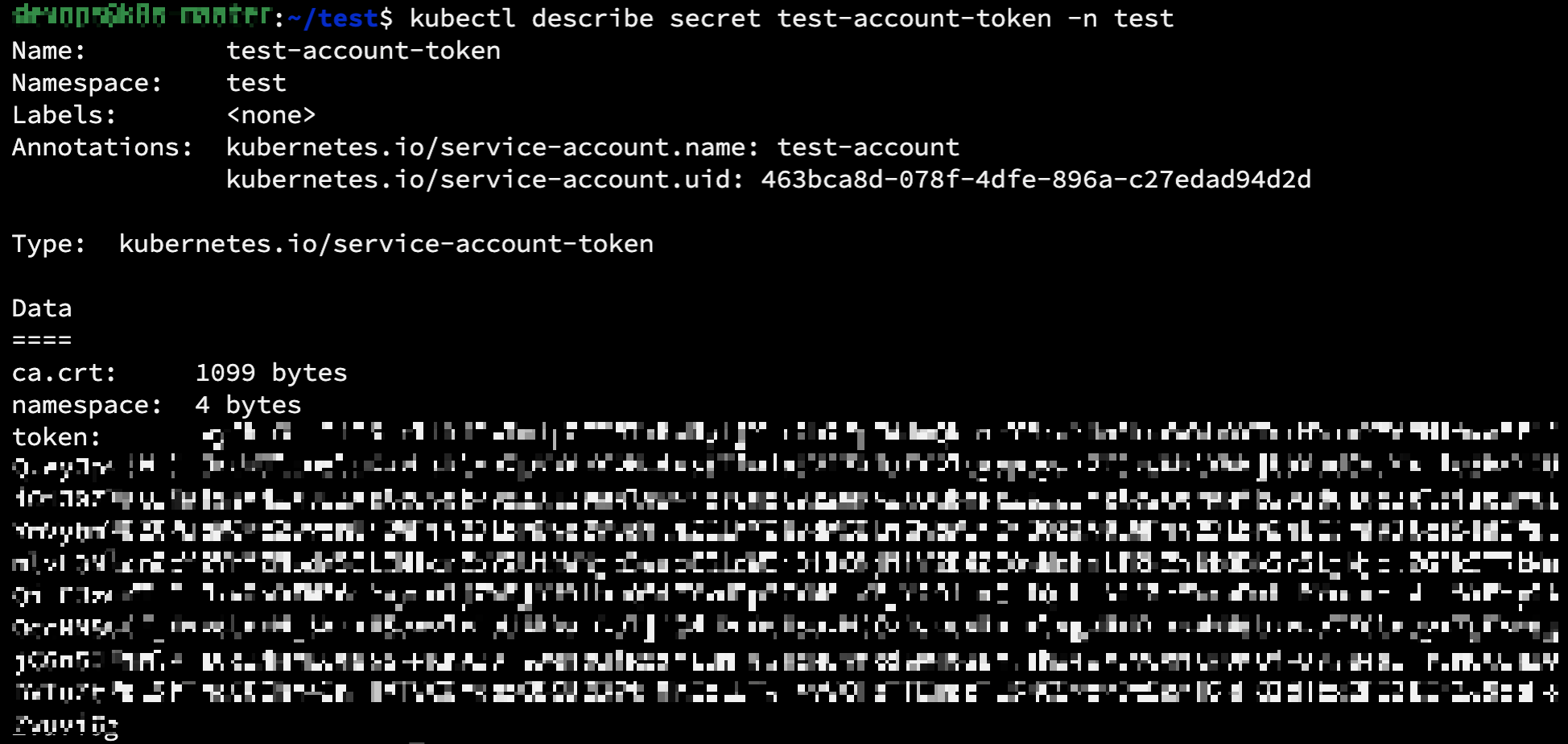
 생성된 Service Account Secret의 Token값은 아래 명령어를 통해 조회가 가능

kubectl describe secret test-account-token -n test
#kubectl describe secret [Secret의 이름] -n [해당 Secret이 속한 Namespace의 이름)

[사진 2] kubectl describe로 해당 Token값을 조회할 수 있음

구동 환경

  • M1 Macbook Pro에 Docker Desktop으로 컨테이너 구동
  • Docker Desktop 컨테이너에서 구동되는 Ansible 서버
  • Docker Desktop에서 구동되는 Minikube 클러스터
  • Minikube 클러스터는 호스트인 M1 Macbook Pro의 IP 주소를 통해 접근하여 kubectl 명령어를 하달

증상

  • Docker Desktop에서 실행된 Ansible 서버 컨테이너에서 Ansible Playbook 실행
  • 대상 호스트는 minikube의 호스트인 M1 Macbook Pro이고, kubectl 명령어 실행 안됨
  • 단, Ansible 서버 컨테이너에서 SSH로 M1 Macbook Pro에 접속하고 수동으로 kubectl 명령은 실행됨 
[root@ansible-server k8s]# ansible-playbook -i hosts k8s-cicd-deployment-playbook.yaml
[WARNING]: Invalid characters were found in group names but not replaced, use -vvvv to see details

PLAY [Create pods using deployment] *************************************************************

TASK [Gathering Facts] **************************************************************************
ok: [192.168.0.XXX]

TASK [create a deployment] **********************************************************************
fatal: [192.168.0.XXX]: FAILED! => {"changed": false, "cmd": "kubectl apply -f study/cicd/cicd-devops-deployment.yaml", "msg": "[Errno 2] No such file or directory: b'kubectl'", "rc": 2, "stderr": "", "stderr_lines": [], "stdout": "", "stdout_lines": []}

PLAY RECAP **************************************************************************************
192.168.0.XXX               : ok=1    changed=0    unreachable=0    failed=1    skipped=0    rescued=0    ignored=0   


에러 내용

  • Ansible playbook 실행 시 호스트에서 kubectl 명령어 찾을 수 없음


파일 코드

  • hosts 파일
[kubernetes]
192.168.0.XXX    ansible_user="Macbook User Name"    ansible_python_interpreter=/usr/bin/python3


  • k8s-cicd-deployment-playbook.yaml 파일 내용
- name: Create pods using deployment
  hosts: kubernetes
  # become: true
  # user: ubuntu

  tasks:
  - name: create a deployment
    command: kubectl apply -f study/cicd/cicd-devops-deployment.yaml

수정

  • Ansible Playbook 파일의 kubectl 명령어를 절대 경로로 지정
- name: Create pods using deployment
  hosts: kubernetes
  # become: true
  # user: ubuntu

  tasks:
  - name: create a deployment
    command: /usr/local/bin/kubectl apply -f study/cicd/cicd-devops-deployment.yaml


결과

  • 정상 작동 함

원인 추측

  • Ansible playbook 실행이 단순 ssh 접속이 아닌 것 같음
  • 환경 변수 PATH 값을 다르게 읽어 들이는 것으로 보임
  • PATH 설정에서 kubectl을 등록하면 해결할 수 있을 것 같음

+ Recent posts